Heart Alphabet Procreate Brush Stamp: A Practical Guide to Stylish Lettering
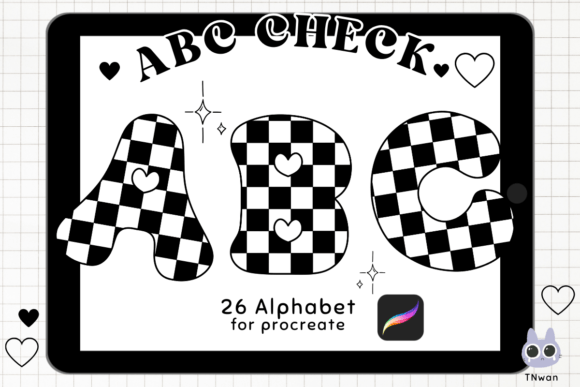
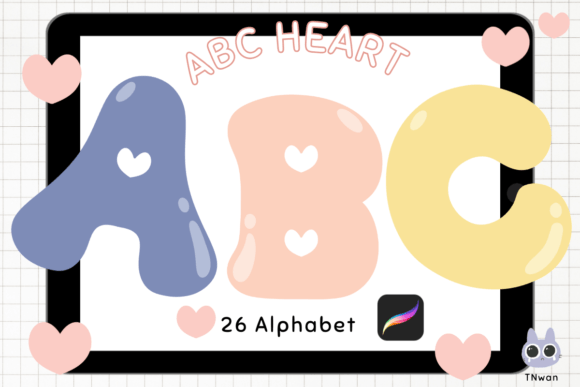
Creating digital art that feels personal and polished often comes down to the tools you choose. For designers, educators, and hobbyists looking to add a touch of whimsy or romance to their projects, the Heart Alphabet Procreate Brush Stamp offers a unique solution. This specific set includes 26 alphabet brush stamps, packaged as a zipped file containing decorative elements like hearts and ribbons. It is designed exclusively for the Procreate app on iPad, allowing users to fill in colors and customize designs to fit any aesthetic need. While these brushes promise quick results, understanding how to install and utilize them correctly is the difference between a professional-looking design and a cluttered mess.
Understanding the Value of Specialized Brush Stamps
The appeal of a Heart Alphabet Procreate Brush Stamp lies in its ability to transform standard text into an artistic element without requiring advanced calligraphy skills. Instead of drawing each letter from scratch, these pre-made stamps allow creators to type out messages instantly while maintaining a cohesive, hand-drawn style. The inclusion of decorative motifs such as hearts and ribbons means the text itself becomes part of the illustration. This is particularly useful for creating wedding invitations, greeting cards, social media graphics, or educational materials where visual engagement is key.
However, many users approach these assets with the expectation that they will work exactly like traditional text layers. This misunderstanding can lead to frustration when the user tries to edit the font size or change the spelling after placement. Unlike standard fonts, brush stamps are raster images. Once placed on the canvas, they become pixels. Recognizing this distinction early saves time and prevents the need to restart a project because a single letter was misspelled.
Common Pitfalls in Installation and Setup
One of the most frequent issues users face is not related to the design itself, but rather the installation process. The product typically arrives as a .zip file. A common mistake is trying to open this file directly within the Procreate app or assuming it installs automatically upon download. This leads to confusion when the brushes do not appear in the library immediately.
To avoid this, follow a precise workflow:
- Download and Unzip: Save the file to your device. You must unzip the archive first. If you skip this step, Procreate cannot read the individual brush files inside.
- Locate in Files App: Open the "Files" app on your iPad. Navigate to the folder where the unzipped content resides.
- Open In Procreate: Tap the file and select "Share" or "Open In," then choose Procreate from the list of apps.
- Verify Installation: Once opened, the brushes will be automatically imported. Check your Brush Library under the appropriate category to confirm they are ready.
Skipping the unzipping step is the primary reason users report broken downloads. Taking an extra minute to manage the file correctly ensures a smooth experience.
Design Mistakes: Overuse and Color Management
Once installed, the creative phase begins. The Heart Alphabet Procreate Brush Stamp set is vibrant by nature, featuring intricate details like ribbons and heart outlines. A common design error is overusing these decorative letters. Because every letter contains detailed embellishments, using them for long paragraphs creates visual noise. The result is text that is difficult to read and overwhelming to the eye.
Instead, treat these stamps as headline elements or short phrases. Use them for titles, names, or key words where impact matters more than readability. For body text, pair these decorative stamps with a clean, simple sans-serif font to create balance. This approach highlights the unique character of the heart alphabet while maintaining the overall legibility of your composition.
Color management is another area where quality can suffer. Since these are brush stamps, they come with a default color. Users often assume they cannot change the hue easily. In reality, Procreate allows you to adjust the color dynamically. Before stamping, ensure your chosen color is selected in the color palette. If you have already stamped the text and wish to change the color, you can use the "Change Color" feature found in the Adjustments menu. However, relying too heavily on post-stamping color changes can sometimes flatten the texture of the ribbon or heart details. It is generally better to plan your color scheme before applying the stamps for the most vibrant and textured result.
Evaluating Quality and Suitability
Before integrating any new asset into your workflow, it is wise to evaluate its resolution and versatility. The Heart Alphabet Procreate Brush Stamp is intended for screen-based designs and standard print sizes. If you are planning to print a large banner or billboard, these stamps may pixelate if scaled up significantly. Always test the brush at your intended final size before committing to a full design.
Additionally, consider the context of your audience. While these brushes are perfect for romantic themes, children's books, or festive events, they may feel out of place in corporate reports or serious news graphics. Matching the tool to the tone of the project is essential for maintaining credibility. Using a playful heart-ribbon font for a legal document, for instance, undermines the professionalism of the content.
Best Practices for Long-Term Use
To get the most out of your 26 alphabet brush stamps, organize your workspace effectively. Create a dedicated layer group specifically for these text elements. This makes it easier to hide, move, or resize the entire message without affecting other parts of your illustration. Furthermore, keep a backup of your original zipped file. Digital assets can sometimes get lost in the shuffle of updates or device transfers. Having the source file ensures you can reinstall the brushes anytime without needing to repurchase them.
Finally, experiment with blending modes. Applying these heart and ribbon stamps with different blending options like "Multiply" or "Overlay" can integrate them more naturally into complex backgrounds. This technique adds depth and prevents the text from looking like a flat sticker pasted on top of the artwork.
By understanding the limitations of raster stamps, following the correct installation steps, and applying thoughtful design principles, you can leverage the Heart Alphabet Procreate Brush Stamp to create stunning, personalized artwork. Whether you are a beginner exploring digital art or a professional looking to speed up your workflow, these tools offer a creative shortcut when used with intention and care.