Mastering Texture: A Practical Guide to the Fence Metal Rust Procreate Brush
Digital art often struggles with one specific hurdle: achieving authentic, gritty realism without losing the flexibility of vector-like editing. Many artists spend hours manually painting corrosion, weathering, and metallic decay, only to end up with results that look painted rather than lived-in. This is where specialized tools become essential. The Fence Metal Rust Procreate Brush offers a streamlined solution for adding seamless metal or rust pattern textures directly within your workflow. However, simply downloading a new brush does not guarantee a masterpiece. Understanding how this tool functions, its limitations, and the common pitfalls users encounter is vital for integrating it effectively into your digital toolkit.
Understanding the Tool’s Specific Purpose
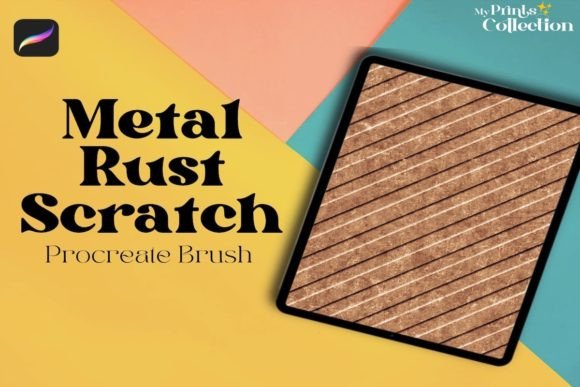
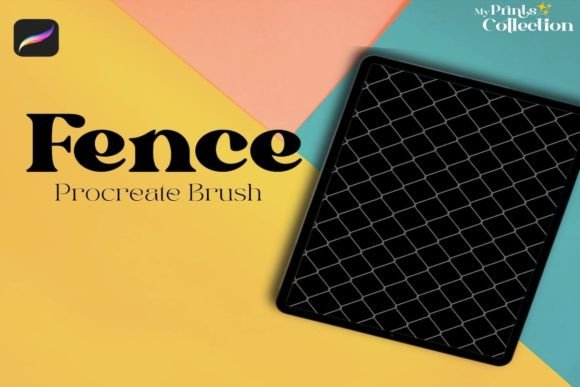
Before diving into technique, it is crucial to clarify what this asset actually is. The Fence Metal Rust Procreate Single Brush is designed specifically to apply a seamless texture that mimics the organic irregularity of oxidized metal. It is not a general-purpose shading tool, nor is it a replacement for foundational drawing skills. Its primary value lies in efficiency and consistency. For creators working on industrial designs, dystopian landscapes, or vintage-themed illustrations, this brush provides an immediate layer of visual complexity.
Many beginners mistakenly believe that texture brushes are "cheats" that require no artistic input. In reality, they are accelerators. They handle the repetitive micro-details of rust pits and metal grain, allowing you to focus on composition, lighting, and color theory. If you approach this tool expecting it to do all the work, your final piece may look flat or disjointed. The best results come when you use the brush as a base layer or a detailing accent, blending it thoughtfully with hand-painted elements.
Common Compatibility Mistakes
One of the most frequent frustrations users face is not related to the art itself, but to software compatibility. It is imperative to note that this brush is engineered exclusively for the Procreate App version 5 or higher. It is not compatible with Photoshop, Illustrator, or other desktop-based design software.
Why does this matter? Many freelancers and small business owners operate across multiple platforms. You might be accustomed to starting a sketch in Photoshop and finishing it elsewhere. Attempting to import this specific brush file into Adobe Creative Cloud will result in errors or corrupted data. This misunderstanding can waste valuable billable hours. Before purchasing or downloading, always verify your current Procreate version. If you are still on an older iPad OS that cannot support Procreate 5, you will need to update your device first. This is a hardware and software ecosystem lock-in, not a flaw in the brush, but it is a critical checkpoint for your workflow.
Overlooking Scale and Resolution
A subtle but impactful error involves ignoring canvas resolution. Texture brushes behave differently depending on the pixel density of your document. If you are working on a small thumbnail for social media, the rust pattern might appear overwhelming and noisy. Conversely, if you are creating a large-format print, the same brush stroke might look too sparse or low-resolution if not adjusted properly.
To avoid this, always test the brush on a separate layer at your intended output size. Adjust the brush size dynamically using the slider. A common best practice is to start with a larger stamp size to establish the general area of corrosion, then reduce the size significantly for fine details along edges and seams. This variation in scale creates depth. Flat, uniform application of texture is a hallmark of amateur digital art. By varying the pressure and size, you mimic how rust naturally accumulates more heavily in crevices and less on exposed surfaces.
Misusing Blending Modes
Another overlooked detail is the interaction between the brush and the layers beneath it. Many users apply the rust texture on a standard "Normal" blend mode, which simply paints opaque pixels over their artwork. This often obscures the underlying forms and colors, making the image look muddy.
For a more realistic integration, experiment with blending modes such as Multiply, Overlay, or Soft Light. These modes allow the texture to interact with the luminosity and color of your base illustration. For example, using Multiply will darken the underlying colors where the rust appears, simulating shadow and depth without blocking out the original hue. This approach maintains the integrity of your initial coloring while adding the desired gritty aesthetic. Always keep your texture on a separate layer so you can adjust opacity and blending modes non-destructively.
Neglecting Color Variation
Rust is rarely a single shade of orange-brown. It contains hints of deep red, ochre, grey, and even greenish patina depending on the metal type and environment. A common mistake is using the default black or single-color setting for the brush throughout the entire piece. This results in a monotonous, artificial look.
To elevate your work, sample colors from your reference images or create a custom palette that includes varied tones of oxidation. Apply the brush using different colors for different areas. Use darker, redder tones for fresh rust and lighter, greyer tones for older, weathered sections. This chromatic variation adds realism and visual interest. It transforms the texture from a simple pattern into a believable material representation.
What to Check Before You Begin
To ensure a smooth experience with the Fence Metal Rust Procreate Brush, consider this quick checklist before you start your next project:
- Verify Software Version: Ensure your iPad is running Procreate App version 5 or higher. Do not attempt to use this with desktop software.
- Define Your Output: Know whether you are designing for screen or print to set the correct canvas resolution.
- Prepare Your Layers: Set up a dedicated layer for textures above your base art but below any final highlights or text.
- Test Blend Modes: Experiment with Multiply or Overlay to see how the texture interacts with your specific color palette.
- Reference Real Life: Keep photos of actual rusty fences or metal structures nearby to guide your placement and color choices.
By addressing these common oversights, you move beyond simply applying a filter and start truly crafting digital environments. The Fence Metal Rust Procreate Brush is a powerful asset, but like any tool, its effectiveness depends on the skill and awareness of the user. Avoid the trap of uniform application and software confusion. Instead, embrace variability, check your technical requirements, and use blending modes to integrate the texture seamlessly. With these adjustments, you will find that adding realistic wear and tear to your digital art becomes not just easier, but significantly more rewarding.